Why Are Instagram Notifications Delayed or Missing?

If you’ve ever grabbed your phone and wondered why your Instagram notifications not working, you’re not alone; millions feel that same sudden panic. You’re waiting for a message, a like, a DM… but nothing pops up. Total silence.
And here’s the shocking part: most of the time, Instagram isn’t even the problem. Your own phone, settings, or network might be secretly blocking everything. Let’s dive in and expose the real reasons your Instagram notifications not coming when you need them most.
How Instagram Notifications Really Work Behind the Scenes?
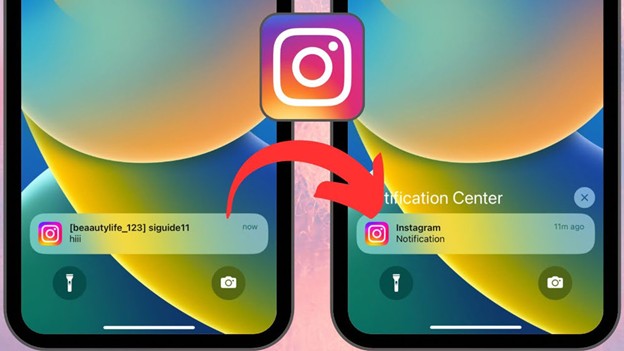
Before diving into why I’m not getting Instagram notifications, it’s crucial to understand what actually happens behind the scenes. Every time someone likes your post, leaves a comment, sends a DM, or engages with your stories, Instagram’s servers immediately generate a notification alert.
This alert then travels through the push notification systems provided by Google (for Android) or Apple (for iOS) before finally reaching your device.
While this process seems seamless, it involves multiple layers where things can go wrong. Even a small hiccup in any step can result in arriving much later than expected. These disruptions may occur at several levels:
- The app level: Sometimes the Instagram app itself experiences bugs, outdated versions, or corrupted data that prevent notifications from being generated or sent correctly. For example, a pending app update or a glitch after installing a new feature can lead to a scenario where notifications do not work.
- The device level: Your phone’s internal settings, like battery optimization, background activity restrictions, or Do Not Disturb, can silently block notifications before they ever reach you.
- The server level: Instagram’s own servers can sometimes experience outages, maintenance delays, or overloaded systems. During these moments, notifications may be delayed or missing entirely.
- The network level: A weak Wi-Fi or mobile data connection can prevent your device from receiving alerts in real time, even if everything else is working perfectly.
Understanding this multi-layered process helps explain why Instagram notifications not working problems aren’t always straightforward. In many cases, the delay isn’t caused by a single factor but by the interaction between app behavior, device settings, server status, and internet connectivity.
To truly fix notification problems, it’s essential to check each of these layers systematically, from the app and device settings to server status and internet stability. By doing so, you can pinpoint whether the issue is temporary, device-specific, or something that requires a broader fix.
The Most Common Causes of Notification Delays and How to Fix Them
Instagram notifications not working can be incredibly frustrating, especially when you’re expecting important messages or updates. The truth is, several hidden factors, ranging from app glitches to phone settings, can silently block or delay alerts.
In the sections below, we break down the most common reasons behind notification delays, explain how each problem affects alert delivery, and provide practical fixes directly under every cause, so you can identify the issue and solve it without guesswork.
1. App-Related Issues
A frequently overlooked Instagram notifications issue occurs when your app becomes outdated, corrupted, or overloaded with cached data. Instagram constantly evolves, releasing new features and performance updates. Older app versions may not communicate properly with Instagram’s notification servers, resulting in delayed or missing alerts.
Furthermore, confusing settings can unintentionally disable certain alerts, like messages, likes, or mentions, leaving users unaware that notifications are switched off. Regularly updating your app and reviewing notification preferences can prevent most app-related issues.
In some cases, app files become partially corrupted due to interrupted updates or low storage, causing notifications to fail even when settings appear correct. These issues often surface after major Instagram updates or when the app hasn’t been refreshed in a long time.
How to fix app-related issues:
- Update Instagram to the latest version to avoid compatibility problems.
- Reopen Instagram notification settings and re-enable all required alerts.
- Log out and log back in to refresh account-level notification sync.
- Reinstall the app if notifications remain delayed or missing.
- Clear cached data to remove corrupted temporary files.
2. Phone Settings Interfering with Alerts
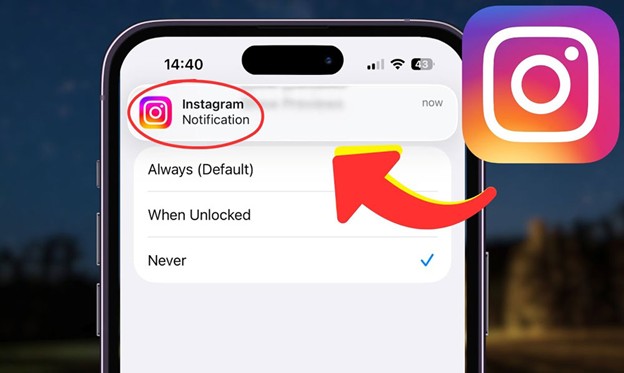
Sometimes, your device settings silently override Instagram’s preferences. One of the most common culprits that Instagram notifications not working is Do Not Disturb blocking notifications, which stops alerts during quiet or focus modes.
Additionally, features like power-saving options, battery optimization, and automatic app sleep modes can interfere with delivery. Even subtle changes, like enabling a new focus profile or system update, resetting notification permissions, can cause alerts to stop unexpectedly.
How to fix phone setting issues:
- Disable Do Not Disturb blocking Instagram notifications.
- Allow Instagram notifications at the system level.
- Turn off aggressive battery optimization for Instagram.
- Remove Instagram from auto-sleep or background restriction lists.
- Recheck notification permissions after system updates.
3. Background Activity Restrictions
Instagram relies heavily on staying active in the background to fetch updates and send timely notifications. When your phone limits background processes, the app can’t sync properly, resulting in slower alerts.
Similarly, enabling low-power or battery-saving modes can trigger notifications in low-power mode, delaying delivery until the phone exits these restricted modes. Ensuring the app has permission to run in the background is essential for real-time notifications.
As a result, users experience Instagram notifications in low-power mode arriving late or in batches. While the app may still function when opened manually, alerts fail to reach the device at the right time.
How to fix background activity restrictions:
- Enable Instagram background app refresh.
- Allow background data usage for Instagram.
- Disable low-power or battery-saving modes temporarily.
- Exempt Instagram from system background limitations.
- Restart the device to reset background process permissions.
4. Cache and Storage Problems
A full or corrupted cache can create unexpected glitches. Performing a Clear Instagram cache fix not only resolves app performance issues but also restores the normal flow of notifications.
Cache corruption is a common cause when Instagram notifications stop abruptly. On devices with limited storage, clearing the cache regularly can prevent notification delays and app crashes, ensuring the app functions smoothly.
How to fix cache and storage problems:
- Clear Instagram cache regularly to prevent corruption.
- Free up device storage to allow background activity.
- Restart the device after clearing the cache.
- Avoid running multiple heavy apps simultaneously.
- Reinstall Instagram if cache issues persist.
5. Outdated App Bugs
Even after updating the app, some updates may include minor bugs. An Instagram app update problem can temporarily cause Instagram notifications not working.
For example, new features may conflict with older device software or certain phone settings, causing Instagram push notifications not to work for some users. Staying on the latest stable version and monitoring update notes can help minimize this issue.
How to fix outdated app bugs:
- Check for follow-up updates or hotfix releases.
- Restart the app and device after updating.
- Monitor Instagram release notes for known issues.
- Roll back to a stable version if possible (Android).
- Report bugs through Instagram’s support tools.
6. Internet & Connectivity Issues
Network stability plays a critical role in notification delivery. When connections are weak or unstable, notifications may queue instead of arriving instantly. This creates the illusion that alerts are broken, when in reality, Instagram notifications are delayed during transmission.
Even brief drops in Wi-Fi or mobile data can interrupt the push notification pipeline, especially if the app is running in the background.
How to fix connectivity-related delays:
- Switch between Wi-Fi and mobile data to test stability.
- Restart the router or enable airplane mode briefly.
- Avoid weak or public networks for critical notifications.
- Keep background data enabled for Instagram.
- Ensure consistent internet access for real-time alerts.
Types of Notification Problems & What They Mean
In some cases, notification delays appear without any visible app error. Alerts may not arrive in real time and only surface after reopening Instagram, suggesting a temporary interruption in delivery rather than a full notification failure.
Below, we explore the most common notification problems, explain why they happen, and provide practical insights to prevent them.
· Missing Notifications
One of the most common complaints is that Instagram notifications are missing completely. This typically happens when the app is blocked at the system level, often due to permission restrictions or power-saving settings.
For instance, if the phone’s battery optimization is active for Instagram, the app may not run in the background to generate alerts. Similarly, if app permissions for Instagram notifications are denied, the app cannot push any alerts, leaving users unaware of new messages or likes.
· Delayed Notifications
Another frequent issue is delayed or missing Instagram notifications, where alerts arrive minutes or even hours late. This usually occurs when your phone limits how often apps can sync data in the background. Even with correct app settings, Instagram background data restrictions or low-power modes can slow down delivery, and Instagram notifications not working.
· Alerts Not Appearing at All
If Instagram alerts not showing up, it’s often a misconfiguration in the notification channels. This could mean system-level notifications are disabled, app-level toggles are off, or alerts are silenced due to “Focus” or Do Not Disturb modes. Ensuring proper setup is the first step toward restoring real-time notifications.
· Messages Not Showing Alerts
When Instagram messages not notifying, the issue usually lies in message-specific permissions. If “Chats & Calls” notifications are disabled inside the app or the system, DMs will arrive silently. Sometimes, filtered messages or restricted accounts also prevent notifications from appearing, which can confuse users.
· Activity Notifications Not Working
For some, Instagram activity notifications not working is the main concern. This can occur if the Activity toggle is turned off or if app refresh permissions are restricted. Even if the app seems fine, notifications for likes, comments, or story interactions may fail until these settings are corrected.
· DM Delay Problems
Many users experience Instagram DM notifications delayed specifically for private messages. Causes include Vanish Mode, filtered requests, or restricted chats, where Instagram notifications not working intentionally. Understanding these exceptions can prevent unnecessary frustration.
· Like Notifications Not Working
The problem extends to engagement alerts. If Instagram likes notifications not working, it might be due to frequency limits or interaction filtering. For example, Instagram sometimes batches notifications to avoid flooding users, which can make like notifications appear late or missing entirely.
· Push Alert Delay
With the Instagram push alert delay, notifications technically exist but fail to appear immediately. Users often notice alerts showing up all at once after unlocking the phone, reconnecting to the internet, or opening the app, indicating a delivery delay rather than a missing notification.
· Real-Time Sync Errors
Finally, the Instagram real-time notifications issue occurs when the app cannot maintain a consistent connection with the push service. This can happen due to server congestion, background restrictions, or device-specific network issues. Users experiencing this may notice that notifications arrive only when the app is actively open.
Conclusion
Dealing with notification issues can be frustrating, but understanding the causes and applying the right fixes ensures you never miss an important alert again. If your Instagram notifications not working, these steps will help you regain full control and stay connected in real-time.
Have you ever missed an important DM because of delayed notifications? Share your experience! What’s the weirdest notification glitch you’ve faced on Instagram? Comment below! Apply these fixes today and never miss a notification again!